




Lion Trading offers a software called Expert Advisor, developed for the MetaTrader 4 platform, which assists users in trading operations on the Forex market. It is essential to underline that Lion Trading does not provide financial or investment advisory services, and neither the Expert Advisor software nor its instructions should be considered as investment recommendations or invitations to collect public savings or manage wealth. This software serves as a practical tool that allows users to formulate and implement customized trading strategies. Users retain full control over their trading operations, including the ability to open new positions or close existing ones. We do not engage in Mirror Trading or CopyTrading, and the Expert Advisor software is not intended as a wealth management service.
It is vital that users are aware that they are fully responsible for their trading decisions and strategies employed through the software. They must be aware of the financial risks associated with using the software and, in general, online trading with real money, where losses can exceed the initial investment. The use of Expert Advisor software involves automating some operational processes on behalf of the user, who undertakes to release Lion Trading from any liability for any damages or losses resulting from its use.
Lion Trading, as the producer and distributor of the software, declines all responsibility for the use of the software and for any losses or damages suffered by the user. The software license is valid only for a specific number of trading accounts and has no expiration date. To use the license on another trading account, a new license must be purchased, benefiting from a 30% discount compared to the list price (excluding promotions). Users must configure, monitor, and constantly adjust the operation of the software, adopting trading strategies in line with their own goals and risk tolerance. The software algorithms cannot guarantee future results or predict unforeseen events, such as market fluctuations or macroeconomic news. The safeguarding of invested capital depends solely on the user's decisions, particularly regarding position size and risk and return management.
Lion Trading and its team offer only technical support, such as software installation and usage of features, and do not provide financial advice, which is the prerogative of legally authorized financial advisors. The results and feedback presented on the website https://www.LionTrading.it The statements regarding the use of the software do not represent guarantees of future performance. Furthermore, the settings used to achieve these results should not be interpreted as investment advice, but as parameters that have proven to be profitable in tests on historical data. Lion Trading does not provide any certainty that these settings will be effective or profitable in the future or that they will protect the account from partial or total losses.
It is noted that the website https://www.LionTrading.it The use of Expert Advisor software is not intended for individuals or entities in jurisdictions where access to the site, consultation of information, and use of services are prohibited or restricted due to nationality, domicile, or residence. Those who are subject to such restrictions are not authorized to access the site or use the guidance. Contracts for Difference (CFDs) are complex instruments that carry a high risk of losing capital due to leverage. A significant percentage of retail investors lose money when trading CFDs. Before using them, it is important to understand how they work and assess whether you can bear the high risk of loss. Users are fully responsible for their investments and should only invest funds they can afford to lose, employing prudent and sustainable money management, including implementing stop losses. It is recommended to carefully consider this information and consult with qualified financial advisors before making investment decisions. Lion Trading disclaims any responsibility for any losses or damages resulting from the use of Expert Advisor software or trading CFDs.
>>STEP 1 - Open a Trading account on Esperio Broker (It is the platform where you will deposit your capital).
>>STEP 2 - Deposit the capital on Broker Esperio, in your trading account.
>>STEP 3 - Activate a VPS (Virtual Private Server). It is the place where the software will be installed, so that it can operate 24 hours a day.
>>STEP 4- Install the software on the VPS
>>STEP 5 - Communicate the account number to activate the license.
>>STEP 6 - Set the values inside the software and start it.
Click onl pulsante \"Sign up for Esperio\To complete your registration, only in this way you will also have your dedicated account manager on the Broker support side.
\nMore details about your dedicated assistant for Esperio can be found in STEP 2 of this guide.
"},"display":{"login-status":"","conditions":"[]","advanced":{"view":"","after-time":{"what":null}}},"overlay":{"mode":"ever","vertical-align":"","positioning":"","data":""}}}],"json":{"responsive":{"desktop":{"col":12},"tablet":[],"mobile":[]}}},{"type":"col","col":12,"children":[{"type":"block","block_type":"main/button","json":{"data":{"type":"main/button","main":{"button":{"type":"primary","text":"Register at Esperio here to receive assistance.","alignment":"center","width":"","theme":"default","design":{"margin":{"top":"15"}},"icon":{"type":"icon","image":{"path":"PROTECTED_CONTENT","is_common":0,"shortcode":"","files":""},"alignment":"left"}},"onclick":{"event":"open_link","open_link":{"target":"_blank","seo":null,"url":"https://my.esperio.org/agent_pp.html?agent_pp=27972391"},"open_popup":{"id":null,"type":"","appearance":{"overlay":"","in-animation":"bounceIn","out-animation":"bounceOut"}},"open_page":{"id":null,"target":"","seo":null},"download_file":{"id":"","target":""}}}},"display":{"login-status":"","conditions":"[]","advanced":{"view":"","after-time":{"what":null}}},"overlay":{"mode":"ever","vertical-align":"","positioning":"","data":""},"design":[]}}],"json":{"responsive":{"desktop":{"col":12},"tablet":[],"mobile":[]}}}],"json":{"data":{"type":"hidden/row","width":"","vertical-alignment":"","attachment":{"enable":"","position":"top","scroll-fixed-handle":"up","scroll-fixed-stop":"0","disable-device":null}},"display":{"login-status":"","conditions":"[]","advanced":{"view":"","after-time":{"what":null}}},"overlay":{"mode":"ever","vertical-align":"","positioning":"","data":""}}},{"type":"row","children":[{"type":"col","col":12,"children":[{"type":"block","block_type":"main/text-editor","json":{"data":{"type":"main/text-editor","content":"WHY DO WE USE ESPERIO?
\nEsperio is an online broker, SAFE and RELIABLE, which has been offering a range of benefits to its clients since 2011, including:
\n- \n
- Spread content \n
Esperio offers tight spreads on a wide range of financial instruments. The spreads are slightly higher compared to other brokers, but this is offset by a number of other advantages, such as high leverage, cent accounts, and cashback program.
\n- \n
- Immediate execution \n
Esperio offers immediate order execution, ensuring that your transactions are carried out without delays. This is important for traders who want to take advantage of market opportunities efficiently.
\n- \n
- Accounts for traders with small capital \n
Esperio offers cent accounts that allow traders to start trading with small amounts. This is ideal for beginner traders or those who want to test a new trading strategy without risking large sums of money.
\n- \n
- Leverage to amplify profits \n
Esperio offers high leverage up to 1:1000. This allows traders to amplify the potential of their investments up to 1000 times.
\n- \n
- Cashback to save money \n
Esperio offers a cashback program that allows traders to receive a refund on spreads and swaps. This can provide an additional financial advantage to traders.
\n- \n
- Bonus to increase profits \n
Esperio offers a wide range of bonuses to its customers, including deposit bonuses, replenishment bonuses, and trading bonuses. These bonuses can help you increase your profits and enhance your trading experience.
\n- \n
- 24/7 support to help you solve problems. \n
Esperio provides 24/7 support to its customers. Support is available via phone, email, and live chat.
\n- \n
- Deposits and withdrawals in cryptocurrencies for greater flexibility. \n
Esperio allows traders to make deposits and withdrawals in cryptocurrencies, as well as with card, bank transfer, and other minor methods. This gives traders greater flexibility in managing their funds.
\nConclusion
\nEsperio is an online broker that offers a range of benefits to its clients. If you are looking for a broker that offers tight spreads, immediate execution, high leverage, cent accounts, cashback, bonuses, 24/7 support, and deposits and withdrawals in cryptocurrencies, Esperio is a good option to consider.
\n"},"display":{"login-status":"","conditions":"[]","advanced":{"view":"","after-time":{"what":null}}},"overlay":{"mode":"ever","vertical-align":"","positioning":"","data":""}}},{"type":"row","children":[{"type":"col","col":12,"children":[{"type":"block","block_type":"main/text-editor","json":{"data":{"type":"main/text-editor","content":"
REGISTERING TO ESPERIO
\nLion Trader is an official partner of Esperio.
\nIMPORTANT: By registering with our contact, you will be able to receive unlimited and free assistance from the Lion Trader team as well as personal support from a dedicated account manager of the broker.NB. If the registration is not completed by clicking on the button below or from the link below, support for Esperio-related matters will be charged).
"},"display":{"login-status":"","conditions":"[]","advanced":{"view":"","after-time":{"what":null}}},"overlay":{"mode":"ever","vertical-align":"","positioning":"","data":""}}}],"json":{"responsive":{"desktop":{"col":12},"tablet":[],"mobile":[]}}}],"json":{"data":{"type":"hidden/row","width":"","vertical-alignment":"","attachment":{"enable":"","position":"top","scroll-fixed-handle":"up","scroll-fixed-stop":"0","disable-device":null}},"display":{"login-status":"","conditions":"[]","advanced":{"view":"","after-time":{"what":null}}},"overlay":{"mode":"ever","vertical-align":"","positioning":"","data":""}}},{"type":"row","children":[{"type":"col","col":5,"children":[{"type":"block","block_type":"main/text-editor","json":{"data":{"type":"main/text-editor","content":"Click on the link below or copy and paste the link into your Browser's URL bar.
\nhttps://my.esperio.org/agent_pp.html?agent_pp=27972391
\n"},"display":{"login-status":"","conditions":"[]","advanced":{"view":"","after-time":{"what":null}}},"overlay":{"mode":"ever","vertical-align":"","positioning":"","data":""},"design":{"border":{"width":{"top":"2","left":"2","bottom":"2","right":"2"},"style":"solid","color":"primary"},"padding":{"top":"5","left":"5","bottom":"5","right":"5"}}}}],"json":{"responsive":{"desktop":{"col":5},"tablet":[],"mobile":[]}}},{"type":"col","col":2,"children":[{"type":"block","block_type":"main/text-editor","json":{"data":{"type":"main/text-editor","content":"or
"},"display":{"login-status":"","conditions":"[]","advanced":{"view":"","after-time":{"what":null}}},"overlay":{"mode":"ever","vertical-align":"","positioning":"","data":""},"design":{"margin":{"top":"35"}}}}],"json":{"responsive":{"desktop":{"col":2},"tablet":[],"mobile":[]}}},{"type":"col","col":5,"children":[{"type":"block","block_type":"main/button","json":{"data":{"type":"main/button","main":{"button":{"type":"primary","text":"Register at Esperio here to receive assistance.","alignment":"center","width":"","theme":"default","design":{"margin":{"top":"30"}},"icon":{"type":"icon","image":{"path":"PROTECTED_CONTENT","is_common":0,"shortcode":"","files":""},"alignment":"left"}},"onclick":{"event":"open_link","open_link":{"target":"_blank","seo":null,"url":"https://my.esperio.org/agent_pp.html?agent_pp=27972391"},"open_popup":{"id":null,"type":"","appearance":{"overlay":"","in-animation":"bounceIn","out-animation":"bounceOut"}},"open_page":{"id":null,"target":"","seo":null},"download_file":{"id":"","target":""}}}},"display":{"login-status":"","conditions":"[]","advanced":{"view":"","after-time":{"what":null}}},"overlay":{"mode":"ever","vertical-align":"","positioning":"","data":""},"design":[]}}],"json":{"responsive":{"desktop":{"col":5},"tablet":[],"mobile":[]}}}],"json":{"data":{"type":"hidden/row","width":"","vertical-alignment":"","attachment":{"enable":"","position":"top","scroll-fixed-handle":"up","scroll-fixed-stop":"0","disable-device":null}},"display":{"login-status":"","conditions":"[]","advanced":{"view":"","after-time":{"what":null}}},"overlay":{"mode":"ever","vertical-align":"","positioning":"","data":""}}},{"type":"block","block_type":"main/text-editor","json":{"data":{"type":"main/text-editor","content":"You just have to enter alone Your name. your email and insert your password created by you (we recommend you to write it down and keep it, to avoid having to later do a password recovery). Once this is done, click on Register.
"},"display":{"login-status":"","conditions":"[]","advanced":{"view":"","after-time":{"what":null}}},"overlay":{"mode":"ever","vertical-align":"","positioning":"","data":""},"design":{"margin":{"top":"20","bottom":"20"}}}},{"type":"block","block_type":"main/single-image","json":{"data":{"type":"main/single-image","image":{"path":"PROTECTED_CONTENT","is_common":0,"shortcode":"","files":"[[\"PROTECTED_CONTENT\",\"dopo-registrazione.png\",1706391578511,123]]"},"zoomable":"0","styles":{"quality":"max"},"main":{"onclick":{"event":"","open_link":{"target":"","seo":null},"open_popup":{"id":null,"type":"","appearance":{"overlay":"","in-animation":"bounceIn","out-animation":"bounceOut"}},"open_page":{"id":null,"target":"","seo":null},"download_file":{"id":"","target":""}},"image":null}},"display":{"login-status":"","conditions":"[]","advanced":{"view":"","after-time":{"what":null}}},"overlay":{"mode":"ever","vertical-align":"","positioning":"","data":""},"design":{"content":{"align":"center"},"background":{"color":"light"}}}},{"type":"block","block_type":"main/text-editor","json":{"data":{"type":"main/text-editor","content":"Enter all the data requested, save the passwords and what they are for.
"},"display":{"login-status":"","conditions":"[]","advanced":{"view":"","after-time":{"what":null}}},"overlay":{"mode":"ever","vertical-align":"","positioning":"","data":""},"design":{"margin":{"top":"20","bottom":"20"}}}},{"type":"block","block_type":"main/single-image","json":{"data":{"type":"main/single-image","image":{"path":"PROTECTED_CONTENT","is_common":0,"shortcode":"","files":"[[\"PROTECTED_CONTENT\",\"cambia-tipo-conto.png\",1706392054288,124]]"},"zoomable":"0","styles":{"quality":"max"},"main":{"onclick":{"event":"","open_link":{"target":"","seo":null},"open_popup":{"id":null,"type":"","appearance":{"overlay":"","in-animation":"bounceIn","out-animation":"bounceOut"}},"open_page":{"id":null,"target":"","seo":null},"download_file":{"id":"","target":""}},"image":null}},"display":{"login-status":"","conditions":"[]","advanced":{"view":"","after-time":{"what":null}}},"overlay":{"mode":"ever","vertical-align":"","positioning":"","data":""},"design":{"content":{"align":"center"},"background":{"color":"light"}}}},{"type":"block","block_type":"main/text-editor","json":{"data":{"type":"main/text-editor","content":"Click on \"cambia\" as indicated by the red arrow and circle.
"},"display":{"login-status":"","conditions":"[]","advanced":{"view":"","after-time":{"what":null}}},"overlay":{"mode":"ever","vertical-align":"","positioning":"","data":""},"design":{"margin":{"top":"20","bottom":"20"}}}},{"type":"block","block_type":"main/single-image","json":{"data":{"type":"main/single-image","image":{"path":"PROTECTED_CONTENT","is_common":0,"shortcode":"","files":"[[\"PROTECTED_CONTENT\",\"apertura-tipo-conto.png\",1706392729112,125]]"},"zoomable":"0","styles":{"quality":"max"},"main":{"onclick":{"event":"","open_link":{"target":"","seo":null},"open_popup":{"id":null,"type":"","appearance":{"overlay":"","in-animation":"bounceIn","out-animation":"bounceOut"}},"open_page":{"id":null,"target":"","seo":null},"download_file":{"id":"","target":""}},"image":null}},"display":{"login-status":"","conditions":"[]","advanced":{"view":"","after-time":{"what":null}}},"overlay":{"mode":"ever","vertical-align":"","positioning":"","data":""},"design":{"content":{"align":"center"},"background":{"color":"light"}}}},{"type":"block","block_type":"main/text-editor","json":{"data":{"type":"main/text-editor","content":"Check the various checkbox as shown in the image and then click on it OPEN AN ACCOUNT
"},"display":{"login-status":"","conditions":"[]","advanced":{"view":"","after-time":{"what":null}}},"overlay":{"mode":"ever","vertical-align":"","positioning":"","data":""},"design":{"margin":{"top":"20","bottom":"20"}}}},{"type":"block","block_type":"main/single-image","json":{"data":{"type":"main/single-image","image":{"path":"PROTECTED_CONTENT","is_common":0,"shortcode":"","files":"[[\"PROTECTED_CONTENT\",\"numero-conto.png\",1706393768597,126]]"},"zoomable":"0","styles":{"quality":"max"},"main":{"onclick":{"event":"","open_link":{"target":"","seo":null},"open_popup":{"id":null,"type":"","appearance":{"overlay":"","in-animation":"bounceIn","out-animation":"bounceOut"}},"open_page":{"id":null,"target":"","seo":null},"download_file":{"id":"","target":""}},"image":null}},"display":{"login-status":"","conditions":"[]","advanced":{"view":"","after-time":{"what":null}}},"overlay":{"mode":"ever","vertical-align":"","positioning":"","data":""},"design":{"content":{"align":"center"},"background":{"color":"light"}}}},{"type":"block","block_type":"main/text-editor","json":{"data":{"type":"main/text-editor","content":"The part regarding registration ends here. You just need to make the deposit on the Esperio platform, but this will be explained within STEP 2.
\nIMPORTANTNow that you have the account number, it is necessary that you communicate it to us, so that we can activate the license of the purchased software.
\nYou can also send us the account number simply via Whatsapp indicating the version of the purchased software Easy or Turbo and the account number of Esperio.
\nGiuseppe Andrisani - Whatsapp +393356597670
\nAlina Alexandra Pintea - Whastapp +393299899015
\nTo access Esperio at any time, simply click on this link:
\n"},"display":{"login-status":"","conditions":"[]","advanced":{"view":"","after-time":{"what":null}}},"overlay":{"mode":"ever","vertical-align":"","positioning":"","data":""}}}],"json":{"responsive":{"desktop":{"col":12},"tablet":[],"mobile":[]}}}],"json":{}},{"type":"settings","json":{"css":"","js":"","deviceOnly":{}}}]KYC - Upload Documents for Profile Verification
"},"display":{"login-status":"","conditions":"[]","advanced":{"view":"","after-time":{"what":null}}},"overlay":{"mode":"ever","vertical-align":"","positioning":"","data":""}}},{"type":"block","block_type":"main/text-editor","json":{"data":{"type":"main/text-editor","content":"After registration, it is necessary to complete the recognition procedure. KYC (Know Your C(customer) in order to have the account verified on Esperio. Just log in with your data inside Esperio and click on your name at the top right.
"},"display":{"login-status":"","conditions":"[]","advanced":{"view":"","after-time":{"what":null}}},"overlay":{"mode":"ever","vertical-align":"","positioning":"","data":""}}},{"type":"block","block_type":"main/single-image","json":{"data":{"type":"main/single-image","image":{"path":"PROTECTED_CONTENT","is_common":0,"shortcode":"","files":"[[\"PROTECTED_CONTENT\",\"dati-personali.png\",1706473540854,133]]"},"zoomable":"0","styles":{"quality":"max"},"main":{"onclick":{"event":"","open_link":{"target":"","seo":null},"open_popup":{"id":null,"type":"","appearance":{"overlay":"","in-animation":"bounceIn","out-animation":"bounceOut"}},"open_page":{"id":null,"target":"","seo":null},"download_file":{"id":"","target":""}},"image":null}},"display":{"login-status":"","conditions":"[]","advanced":{"view":"","after-time":{"what":null}}},"overlay":{"mode":"ever","vertical-align":"","positioning":"","data":""},"design":{"margin":{"top":"20","bottom":"20"},"content":{"align":"center"},"background":{"color":"light"}}}},{"type":"block","block_type":"main/text-editor","json":{"data":{"type":"main/text-editor","content":"The page dedicated to your profile opens.
\nClick on \"Upload a document\" and select a document of yours to upload.
\nClicca anche su \"Upload proof of residence\, and choose whether to upload yours electricity or gas bill or a residence certificate or a bank statement, important that they are not older than 3 months.
\nWithin 1 or 2 working days, the approval of the documents will be issued and in any case we recommend you to monitor the progress.
"},"display":{"login-status":"","conditions":"[]","advanced":{"view":"","after-time":{"what":null}}},"overlay":{"mode":"ever","vertical-align":"","positioning":"","data":""}}},{"type":"block","block_type":"main/single-image","json":{"data":{"type":"main/single-image","image":{"path":"PROTECTED_CONTENT","is_common":0,"shortcode":"","files":"[[\"PROTECTED_CONTENT\",\"dati-personali-documenti.png\",1706474308358,134]]"},"zoomable":"0","styles":{"quality":"max"},"main":{"onclick":{"event":"","open_link":{"target":"","seo":null},"open_popup":{"id":null,"type":"","appearance":{"overlay":"","in-animation":"bounceIn","out-animation":"bounceOut"}},"open_page":{"id":null,"target":"","seo":null},"download_file":{"id":"","target":""}},"image":null}},"display":{"login-status":"","conditions":"[]","advanced":{"view":"","after-time":{"what":null}}},"overlay":{"mode":"ever","vertical-align":"","positioning":"","data":""},"design":{"margin":{"top":"20"},"content":{"align":"center"},"background":{"color":"light"}}}},{"type":"block","block_type":"main/text-editor","json":{"data":{"type":"main/text-editor","content":"Only the confirmation of your telephone contact remains.
\nThis is important as it will be used as 2FA for withdrawal requests.
\nClick first on confirm and then on send the code as indicated by the black arrow in the image below.
"},"display":{"login-status":"","conditions":"[]","advanced":{"view":"","after-time":{"what":null}}},"overlay":{"mode":"ever","vertical-align":"","positioning":"","data":""}}},{"type":"block","block_type":"main/single-image","json":{"data":{"type":"main/single-image","image":{"path":"PROTECTED_CONTENT","is_common":0,"shortcode":"","files":"[[\"PROTECTED_CONTENT\",\"confirm-numero.png\",1706474763883,135]]"},"zoomable":"0","styles":{"quality":"max"},"main":{"onclick":{"event":"","open_link":{"target":"","seo":null},"open_popup":{"id":null,"type":"","appearance":{"overlay":"","in-animation":"bounceIn","out-animation":"bounceOut"}},"open_page":{"id":null,"target":"","seo":null},"download_file":{"id":"","target":""}},"image":null}},"display":{"login-status":"","conditions":"[]","advanced":{"view":"","after-time":{"what":null}}},"overlay":{"mode":"ever","vertical-align":"","positioning":"","data":""},"design":{"margin":{"top":"20","bottom":"20"},"content":{"align":"center"},"background":{"color":"light"}}}},{"type":"block","block_type":"main/text-editor","json":{"data":{"type":"main/text-editor","content":"At this point you will receive an automatic and robotic call and you just have to answer. The call will end immediately after that.
\nYou haven't received any code, so you need to click again. \"Reinvia codice\".
\nIn a few seconds you will receive an SMS from Esperio containing the verification code to be entered.
"},"display":{"login-status":"","conditions":"[]","advanced":{"view":"","after-time":{"what":null}}},"overlay":{"mode":"ever","vertical-align":"","positioning":"","data":""}}},{"type":"block","block_type":"main/single-image","json":{"data":{"type":"main/single-image","image":{"path":"PROTECTED_CONTENT","is_common":0,"shortcode":"","files":"[[\"PROTECTED_CONTENT\",\"il-tuo-pin-.png\",1706475638421,136]]"},"zoomable":"0","styles":{"quality":"max"},"main":{"onclick":{"event":"","open_link":{"target":"","seo":null},"open_popup":{"id":null,"type":"","appearance":{"overlay":"","in-animation":"bounceIn","out-animation":"bounceOut"}},"open_page":{"id":null,"target":"","seo":null},"download_file":{"id":"","target":""}},"image":null}},"display":{"login-status":"","conditions":"[]","advanced":{"view":"","after-time":{"what":null}}},"overlay":{"mode":"ever","vertical-align":"","positioning":"","data":""},"design":{"margin":{"top":"20","bottom":"20"},"content":{"align":"center"},"background":{"color":"light"}}}},{"type":"block","block_type":"main/text-editor","json":{"data":{"type":"main/text-editor","content":"Now you have also completed the verification process. It will take an average of 24 to 48 hours for confirmation from Esperio. We recommend checking the next day to monitor validation.
\nIf you need, you can contact Esperio's side. Simone on Whatsapp +39 328 903 3510
"},"display":{"login-status":"","conditions":"[]","advanced":{"view":"","after-time":{"what":null}}},"overlay":{"mode":"ever","vertical-align":"","positioning":"","data":""}}}],"json":{"responsive":{"desktop":{"col":12},"tablet":{},"mobile":{}}}}],"json":{}},{"type":"row","children":[{"type":"col","col":12,"children":[{"type":"block","block_type":"main/text-editor","json":{"data":{"type":"main/text-editor","content":"I deposit capital into Esperio account.
"},"display":{"login-status":"","conditions":"[]","advanced":{"view":"","after-time":{"what":null}}},"overlay":{"mode":"ever","vertical-align":"","positioning":"","data":""}}},{"type":"block","block_type":"main/single-image","json":{"data":{"type":"main/single-image","image":{"path":"PROTECTED_CONTENT","is_common":0,"shortcode":"","files":"[[\"PROTECTED_CONTENT\",\"deposito.png\",1706476698572,137]]"},"zoomable":"0","styles":{"quality":"max"},"main":{"onclick":{"event":"","open_link":{"target":"","seo":null},"open_popup":{"id":null,"type":"","appearance":{"overlay":"","in-animation":"bounceIn","out-animation":"bounceOut"}},"open_page":{"id":null,"target":"","seo":null},"download_file":{"id":"","target":""}},"image":null}},"display":{"login-status":"","conditions":"[]","advanced":{"view":"","after-time":{"what":null}}},"overlay":{"mode":"ever","vertical-align":"","positioning":"","data":""},"design":{"margin":{"top":"20","bottom":"20"},"content":{"align":"center"},"background":{"color":"light"}}}},{"type":"block","block_type":"main/text-editor","json":{"data":{"type":"main/text-editor","content":"Esperio offers various solutions for both deposit and withdrawal. Just select the method you prefer and follow the instructions.
\nIn this example, we see a deposit via Bank Transfer.
\nPer fare questo ti basta cliccare su Depositi/Prelievi and then on Deposito. Come vedi si aprono varie possibilità di deposito. Click on \"Bank Transfers\" e verifica che sia selezionata la valuta EUR come da immagine indicata dalla freccia nera.
"},"display":{"login-status":"","conditions":"[]","advanced":{"view":"","after-time":{"what":null}}},"overlay":{"mode":"ever","vertical-align":"","positioning":"","data":""},"design":{"margin":{"top":"20","bottom":"20"}}}},{"type":"block","block_type":"main/single-image","json":{"data":{"type":"main/single-image","image":{"path":"PROTECTED_CONTENT","is_common":0,"shortcode":"","files":"[[\"PROTECTED_CONTENT\",\"dep1.png\",1706477239361,138]]"},"zoomable":"0","styles":{"quality":"max"},"main":{"onclick":{"event":"","open_link":{"target":"","seo":null},"open_popup":{"id":null,"type":"","appearance":{"overlay":"","in-animation":"bounceIn","out-animation":"bounceOut"}},"open_page":{"id":null,"target":"","seo":null},"download_file":{"id":"","target":""}},"image":null}},"display":{"login-status":"","conditions":"[]","advanced":{"view":"","after-time":{"what":null}}},"overlay":{"mode":"ever","vertical-align":"","positioning":"","data":""},"design":{"content":{"align":"center"},"background":{"color":"light"}}}},{"type":"block","block_type":"main/text-editor","json":{"data":{"type":"main/text-editor","content":"Ti basta inserire l'importo che desideri versare sul conto e cliccare su \"Bank transfers SEPA\"
"},"display":{"login-status":"","conditions":"[]","advanced":{"view":"","after-time":{"what":null}}},"overlay":{"mode":"ever","vertical-align":"","positioning":"","data":""},"design":{"margin":{"top":"20"}}}},{"type":"block","block_type":"main/single-image","json":{"data":{"type":"main/single-image","image":{"path":"PROTECTED_CONTENT","is_common":0,"shortcode":"","files":"[[\"PROTECTED_CONTENT\",\"dep2.png\",1706477572058,139]]"},"zoomable":"0","styles":{"quality":"max"},"main":{"onclick":{"event":"","open_link":{"target":"","seo":null},"open_popup":{"id":null,"type":"","appearance":{"overlay":"","in-animation":"bounceIn","out-animation":"bounceOut"}},"open_page":{"id":null,"target":"","seo":null},"download_file":{"id":"","target":""}},"image":null}},"display":{"login-status":"","conditions":"[]","advanced":{"view":"","after-time":{"what":null}}},"overlay":{"mode":"ever","vertical-align":"","positioning":"","data":""},"design":{"content":{"align":"center"},"background":{"color":"light"},"margin":{"top":"20","bottom":"20"}}}},{"type":"block","block_type":"main/text-editor","json":{"data":{"type":"main/text-editor","content":"Check that Bank transfer is in EURO and then click on \"Crea una richiesta\"
"},"display":{"login-status":"","conditions":"[]","advanced":{"view":"","after-time":{"what":null}}},"overlay":{"mode":"ever","vertical-align":"","positioning":"","data":""}}},{"type":"block","block_type":"main/single-image","json":{"data":{"type":"main/single-image","image":{"path":"PROTECTED_CONTENT","is_common":0,"shortcode":"","files":"[[\"PROTECTED_CONTENT\",\"dep4.png\",1706478938830,140]]"},"zoomable":"0","styles":{"quality":"max"},"main":{"onclick":{"event":"","open_link":{"target":"","seo":null},"open_popup":{"id":null,"type":"","appearance":{"overlay":"","in-animation":"bounceIn","out-animation":"bounceOut"}},"open_page":{"id":null,"target":"","seo":null},"download_file":{"id":"","target":""}},"image":null}},"display":{"login-status":"","conditions":"[]","advanced":{"view":"","after-time":{"what":null}}},"overlay":{"mode":"ever","vertical-align":"","positioning":"","data":""},"design":{"margin":{"top":"20","bottom":"20"},"content":{"align":"center"},"background":{"color":"light"}}}},{"type":"block","block_type":"main/text-editor","json":{"data":{"type":"main/text-editor","content":"IMPORTANT:Esperio could change data such as the IBAN, compared to when this guide was created. So the values to be entered in the bank transfer shown in this image are indicative and serve to understand the deposit method via bank transfer.
"},"display":{"login-status":"","conditions":"[]","advanced":{"view":"","after-time":{"what":null}}},"overlay":{"mode":"ever","vertical-align":"","positioning":"","data":""}}}],"json":{"responsive":{"desktop":{"col":12},"tablet":{},"mobile":{}}}}],"json":{}},{"type":"settings","json":{"css":"","js":"","deviceOnly":{}}}]VPS activation on ZOMRO platform
The VPS is where we will install Meta Trader 4 and Lion Trader software, allowing you to trade 24/7. It's a simple activation process. Follow the steps below.
First, click on the link below to access Zomro.
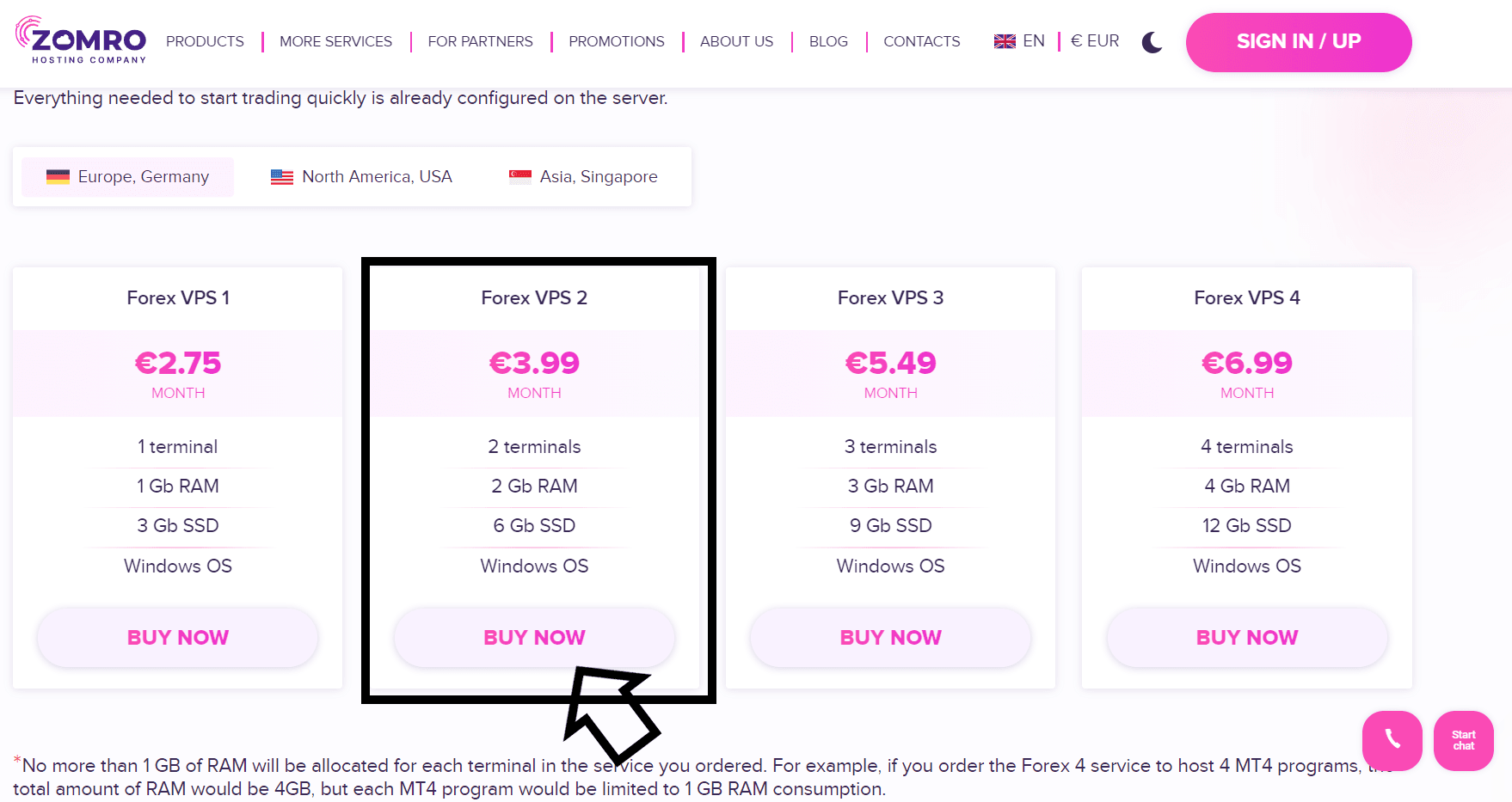
Click on BUY NOWWe recommend you to activate this version of the VPS. FOREX VPS 2
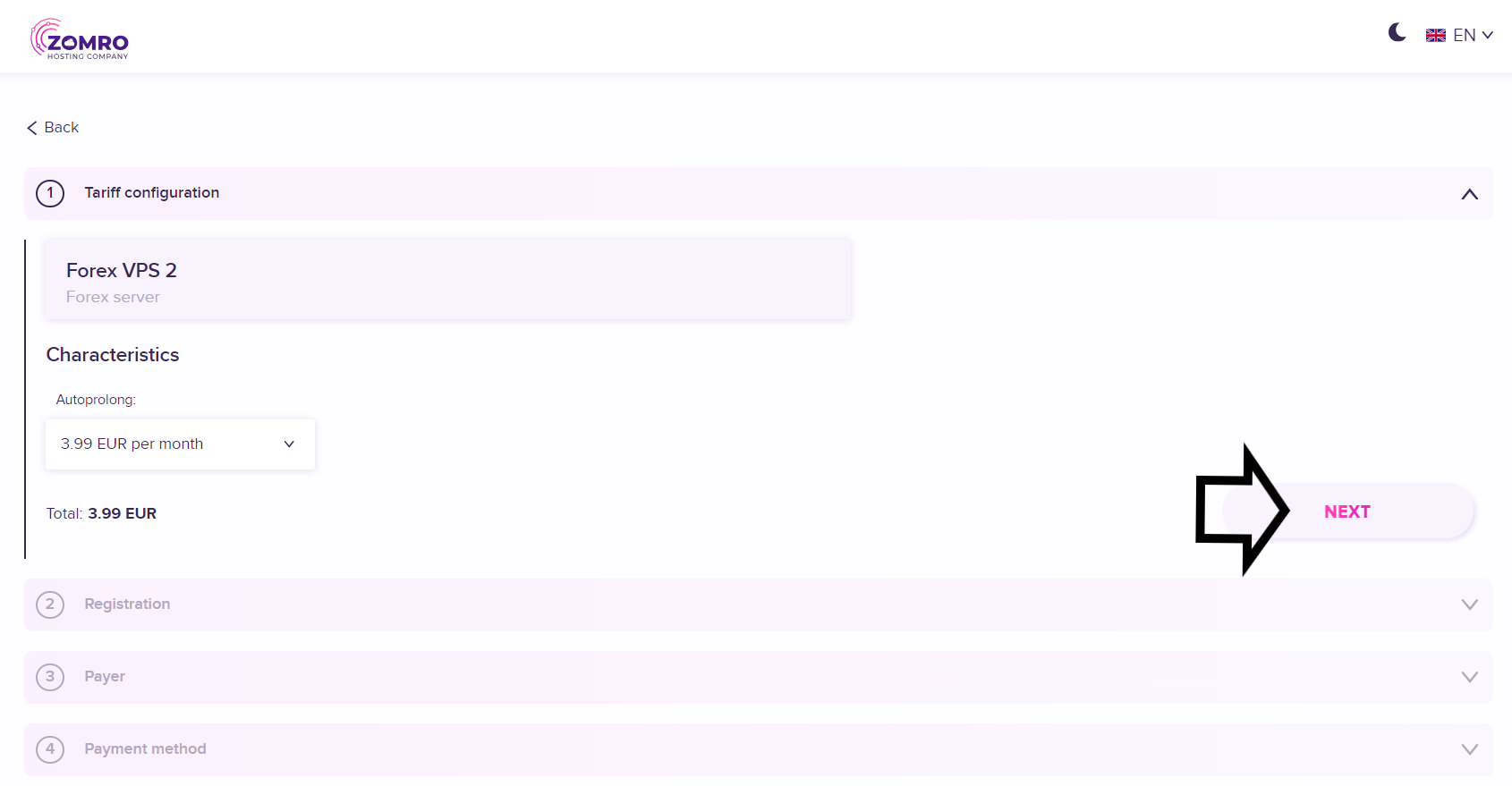
Click on NEXT to continue with the purchase.

Now you need to enter the data for registration. You can register by entering your email and password or through your Google account. After entering the data, click on Registration.

Fill in the requested information and then click on NEXT

Select the payment method you prefer, check the box related to Terms and Privacy as indicated by the black arrow on the left, and then click on NEXT.
Proceed and complete the payment in the selected method.

Once the payment is completed, you can access your VPS screen at any time. To access it, simply click on the icon on the left as indicated by the black arrow and scroll down to click on the dial. FOREX SERVER.

Your newly purchased VPS will appear here. First, check if both dots are green under the status section. If not, please wait a moment as it means your VPS activation is in progress. Normally, it's almost instant. When the status is active (both are green), you can access the VPS settings by clicking on the gear symbol as indicated by the black right arrow and then on. INSTRUCTIONS.

Here are the data to access your VPS.
The fields we are going to use are the Server address, User e Password.
Leave this screen open and let's proceed to the next step. STEP 4 - Install the software on the VPS.
Install the software on the VPS
"},"display":{"login-status":"","conditions":"[]","advanced":{"view":"","after-time":{"what":null}}},"overlay":{"mode":"ever","vertical-align":"","positioning":"","data":""}}},{"type":"block","block_type":"main/text-editor","json":{"data":{"type":"main/text-editor","content":"As we saw in the previous step, now that we have registered and activated on Zomro, we have the data to access inside our VPS and install MetaTrader 4 and EA Lion Trader.
\nIt is necessary to access the VPS now and to do so we use the REMOTE DESKTOP function of the PC.
\nWe have two modes of access.
"},"display":{"login-status":"","conditions":"[]","advanced":{"view":"","after-time":{"what":null}}},"overlay":{"mode":"ever","vertical-align":"","positioning":"","data":""},"design":{"margin":{"top":"20","bottom":"20"}}}},{"type":"row","children":[{"type":"col","col":6,"children":[{"type":"block","block_type":"main/text-editor","json":{"data":{"type":"main/text-editor","content":"1st Option
"},"display":{"login-status":"","conditions":"[]","advanced":{"view":"","after-time":{"what":null}}},"overlay":{"mode":"ever","vertical-align":"","positioning":"","data":""},"design":{"padding":{"top":"10","bottom":"10","left":"10"},"border":{"width":{"left":""}},"background":{"color":"primary"}}}},{"type":"block","block_type":"main/single-image","json":{"data":{"type":"main/single-image","image":{"path":"PROTECTED_CONTENT","is_common":0,"shortcode":"","files":"[[\"PROTECTED_CONTENT\",\"desk.png\",1706489472045,149]]"},"zoomable":"0","styles":{"quality":"max"},"main":{"onclick":{"event":"","open_link":{"target":"","seo":null},"open_popup":{"id":null,"type":"","appearance":{"overlay":"","in-animation":"bounceIn","out-animation":"bounceOut"}},"open_page":{"id":null,"target":"","seo":null},"download_file":{"id":"","target":""}},"image":null}},"display":{"login-status":"","conditions":"[]","advanced":{"view":"","after-time":{"what":null}}},"overlay":{"mode":"ever","vertical-align":"","positioning":"","data":""},"design":{"border":{"width":{"left":"3","top":"3","bottom":"3","right":"3"},"style":"solid","color":"primary"}}}}],"json":{"responsive":{"desktop":{"col":6},"tablet":[],"mobile":[]}}},{"type":"col","col":6,"children":[{"type":"block","block_type":"main/text-editor","json":{"data":{"type":"main/text-editor","content":"Option 2
"},"display":{"login-status":"","conditions":"[]","advanced":{"view":"","after-time":{"what":null}}},"overlay":{"mode":"ever","vertical-align":"","positioning":"","data":""},"design":{"padding":{"top":"10","bottom":"10","left":"10"},"border":{"width":{"left":""}},"background":{"color":"primary"}}}},{"type":"block","block_type":"main/single-image","json":{"data":{"type":"main/single-image","image":{"path":"PROTECTED_CONTENT","is_common":0,"shortcode":"","files":"[[\"PROTECTED_CONTENT\",\"desk1.png\",1706489734348,150]]"},"zoomable":"0","styles":{"quality":"max"},"main":{"onclick":{"event":"","open_link":{"target":"","seo":null},"open_popup":{"id":null,"type":"","appearance":{"overlay":"","in-animation":"bounceIn","out-animation":"bounceOut"}},"open_page":{"id":null,"target":"","seo":null},"download_file":{"id":"","target":""}},"image":null}},"display":{"login-status":"","conditions":"[]","advanced":{"view":"","after-time":{"what":null}}},"overlay":{"mode":"ever","vertical-align":"","positioning":"","data":""}}}],"json":{"responsive":{"desktop":{"col":6},"tablet":[],"mobile":[]},"data":{"type":"hidden/col"},"design":{"border":{"width":{"left":"3","bottom":"3","right":"3","top":"3"},"style":"solid","color":"primary"}}}}],"json":{"data":{"type":"hidden/row","width":"","vertical-alignment":"","attachment":{"enable":"","position":"top","scroll-fixed-handle":"up","scroll-fixed-stop":"0","disable-device":null}},"display":{"login-status":"","conditions":"[]","advanced":{"view":"","after-time":{"what":null}}},"overlay":{"mode":"ever","vertical-align":"","positioning":"","data":""}}},{"type":"block","block_type":"main/text-editor","json":{"data":{"type":"main/text-editor","content":"- \n
- The first way to access the Remote Desktop function from your computer is to click on START (bottom right of the computer) and then type REMOTE DESKTOP. \n
- The second way is to click on the START of the PC and type run, press enter and enter this writing in the Open this voice. mstsc.exe \n
The window for the remote desktop connection will open. At this point, you will simply need to paste the text into the Computer field. Server address of your VPS and under the Username field the data User indicated in your VPS.
"},"display":{"login-status":"","conditions":"[]","advanced":{"view":"","after-time":{"what":null}}},"overlay":{"mode":"ever","vertical-align":"","positioning":"","data":""},"design":{"margin":{"top":"20","bottom":"20"}}}},{"type":"block","block_type":"main/single-image","json":{"data":{"type":"main/single-image","image":{"path":"PROTECTED_CONTENT","is_common":0,"shortcode":"","files":"[[\"PROTECTED_CONTENT\",\"desk11.png\",1706492271220,152]]"},"zoomable":"0","styles":{"quality":"max"},"main":{"onclick":{"event":"","open_link":{"target":"","seo":null},"open_popup":{"id":null,"type":"","appearance":{"overlay":"","in-animation":"bounceIn","out-animation":"bounceOut"}},"open_page":{"id":null,"target":"","seo":null},"download_file":{"id":"","target":""}},"image":null}},"display":{"login-status":"","conditions":"[]","advanced":{"view":"","after-time":{"what":null}}},"overlay":{"mode":"ever","vertical-align":"","positioning":"","data":""},"design":{"content":{"align":"center"},"background":{"color":"light"}}}},{"type":"block","block_type":"main/text-editor","json":{"data":{"type":"main/text-editor","content":"You will be asked by the system to enter the password and you will simply have to copy and paste the password indicated in your VPS settings. Check Remember credentials and then press ok.
"},"display":{"login-status":"","conditions":"[]","advanced":{"view":"","after-time":{"what":null}}},"overlay":{"mode":"ever","vertical-align":"","positioning":"","data":""}}},{"type":"block","block_type":"main/single-image","json":{"data":{"type":"main/single-image","image":{"path":"PROTECTED_CONTENT","is_common":0,"shortcode":"","files":"[[\"PROTECTED_CONTENT\",\"desk-vps.png\",1706493686228,155]]"},"zoomable":"0","styles":{"quality":"max"},"main":{"onclick":{"event":"","open_link":{"target":"","seo":null},"open_popup":{"id":null,"type":"","appearance":{"overlay":"","in-animation":"bounceIn","out-animation":"bounceOut"}},"open_page":{"id":null,"target":"","seo":null},"download_file":{"id":"","target":""}},"image":null}},"display":{"login-status":"","conditions":"[]","advanced":{"view":"","after-time":{"what":null}}},"overlay":{"mode":"ever","vertical-align":"","positioning":"","data":""},"design":{"margin":{"top":"20","bottom":"20"},"content":{"align":"center"},"background":{"color":"light"}}}},{"type":"block","block_type":"main/text-editor","json":{"data":{"type":"main/text-editor","content":"You will find yourself inside your VPS. What we are going to do now is install Meta Trader 4 and bring Lion Trader's software inside the VPS.
\nScreenshot the VPS screen and click on the link below from your PC to download MetaTrader 4.
\nhttps://download.mql5.com/cdn/web/19692/mt4/ofgcap4setup.exe
"},"display":{"login-status":"","conditions":"[]","advanced":{"view":"","after-time":{"what":null}}},"overlay":{"mode":"ever","vertical-align":"","positioning":"","data":""}}},{"type":"block","block_type":"main/single-image","json":{"data":{"type":"main/single-image","image":{"path":"PROTECTED_CONTENT","is_common":0,"shortcode":"","files":"[[\"PROTECTED_CONTENT\",\"espero-copia.png\",1706545724612,157]]"},"zoomable":"0","styles":{"quality":"max"},"main":{"onclick":{"event":"","open_link":{"target":"","seo":null},"open_popup":{"id":null,"type":"","appearance":{"overlay":"","in-animation":"bounceIn","out-animation":"bounceOut"}},"open_page":{"id":null,"target":"","seo":null},"download_file":{"id":"","target":""}},"image":null}},"display":{"login-status":"","conditions":"[]","advanced":{"view":"","after-time":{"what":null}}},"overlay":{"mode":"ever","vertical-align":"","positioning":"","data":""},"design":{"margin":{"top":"20","bottom":"20"},"background":{"color":"light"}}}},{"type":"block","block_type":"main/text-editor","json":{"data":{"type":"main/text-editor","content":"Open the path where you saved the file, select the file (file name - ofgcap4setup), right-click on the file, and then click on copy.
"},"display":{"login-status":"","conditions":"[]","advanced":{"view":"","after-time":{"what":null}}},"overlay":{"mode":"ever","vertical-align":"","positioning":"","data":""}}},{"type":"block","block_type":"main/single-image","json":{"data":{"type":"main/single-image","image":{"path":"PROTECTED_CONTENT","is_common":0,"shortcode":"","files":"[[\"PROTECTED_CONTENT\",\"1-step-clicca-su-paste-incolla.png\",1706546955353,158]]"},"zoomable":"0","styles":{"quality":"max"},"main":{"onclick":{"event":"","open_link":{"target":"","seo":null},"open_popup":{"id":null,"type":"","appearance":{"overlay":"","in-animation":"bounceIn","out-animation":"bounceOut"}},"open_page":{"id":null,"target":"","seo":null},"download_file":{"id":"","target":""}},"image":null}},"display":{"login-status":"","conditions":"[]","advanced":{"view":"","after-time":{"what":null}}},"overlay":{"mode":"ever","vertical-align":"","positioning":"","data":""},"design":{"margin":{"top":"20","bottom":"20"},"background":{"color":"light"},"content":{"align":"center"}}}},{"type":"block","block_type":"main/text-editor","json":{"data":{"type":"main/text-editor","content":"Open the vps (remote desktop) and right-click with the mouse and then on PASTE. This is how you pasted the Meta Trade 4 software into the VPS. Now double-click on the executable file you just pasted to start the installation.
"},"display":{"login-status":"","conditions":"[]","advanced":{"view":"","after-time":{"what":null}}},"overlay":{"mode":"ever","vertical-align":"","positioning":"","data":""}}},{"type":"block","block_type":"main/text-editor","json":{"data":{"type":"main/text-editor","content":"LOGIN IN META TRADE 4
"},"display":{"login-status":"","conditions":"[]","advanced":{"view":"","after-time":{"what":null}}},"overlay":{"mode":"ever","vertical-align":"","positioning":"","data":""},"design":{"margin":{"top":"20"}}}},{"type":"block","block_type":"main/single-image","json":{"data":{"type":"main/single-image","image":{"path":"PROTECTED_CONTENT","is_common":0,"shortcode":"","files":"[[\"PROTECTED_CONTENT\",\"esperio-avvio.png\",1706547294612,159]]"},"zoomable":"0","styles":{"quality":"max"},"main":{"onclick":{"event":"","open_link":{"target":"","seo":null},"open_popup":{"id":null,"type":"","appearance":{"overlay":"","in-animation":"bounceIn","out-animation":"bounceOut"}},"open_page":{"id":null,"target":"","seo":null},"download_file":{"id":"","target":""}},"image":null}},"display":{"login-status":"","conditions":"[]","advanced":{"view":"","after-time":{"what":null}}},"overlay":{"mode":"ever","vertical-align":"","positioning":"","data":""},"design":{"margin":{"top":"20","bottom":"20"},"content":{"align":"center"},"background":{"color":"light"}}}},{"type":"block","block_type":"main/text-editor","json":{"data":{"type":"main/text-editor","content":"Now click always on Go ahead for the installation and at the end click on End.
\nThe installation is complete. login in Meta Trade 4 with our data.
"},"display":{"login-status":"","conditions":"[]","advanced":{"view":"","after-time":{"what":null}}},"overlay":{"mode":"ever","vertical-align":"","positioning":"","data":""}}},{"type":"block","block_type":"main/single-image","json":{"data":{"type":"main/single-image","image":{"path":"PROTECTED_CONTENT","is_common":0,"shortcode":"","files":"[[\"PROTECTED_CONTENT\",\"avvio-e-1.png\",1706547746506,160]]"},"zoomable":"0","styles":{"quality":"max"},"main":{"onclick":{"event":"","open_link":{"target":"","seo":null},"open_popup":{"id":null,"type":"","appearance":{"overlay":"","in-animation":"bounceIn","out-animation":"bounceOut"}},"open_page":{"id":null,"target":"","seo":null},"download_file":{"id":"","target":""}},"image":null}},"display":{"login-status":"","conditions":"[]","advanced":{"view":"","after-time":{"what":null}}},"overlay":{"mode":"ever","vertical-align":"","positioning":"","data":""},"design":{"margin":{"top":"20","bottom":"20"},"content":{"align":"center"},"background":{"color":"light"}}}},{"type":"block","block_type":"main/text-editor","json":{"data":{"type":"main/text-editor","content":"Devi selezionare come da immagine \"OFGCap-Pacific\as a server.
\nSe non ti appare digita \"OFGCap-Pacific\Look for the Esperio server. Select and click. Go ahead.
"},"display":{"login-status":"","conditions":"[]","advanced":{"view":"","after-time":{"what":null}}},"overlay":{"mode":"ever","vertical-align":"","positioning":"","data":""}}},{"type":"block","block_type":"main/single-image","json":{"data":{"type":"main/single-image","image":{"path":"PROTECTED_CONTENT","is_common":0,"shortcode":"","files":"[[\"PROTECTED_CONTENT\",\"avv-e-2.png\",1706548148220,161]]"},"zoomable":"0","styles":{"quality":"max"},"main":{"onclick":{"event":"","open_link":{"target":"","seo":null},"open_popup":{"id":null,"type":"","appearance":{"overlay":"","in-animation":"bounceIn","out-animation":"bounceOut"}},"open_page":{"id":null,"target":"","seo":null},"download_file":{"id":"","target":""}},"image":null}},"display":{"login-status":"","conditions":"[]","advanced":{"view":"","after-time":{"what":null}}},"overlay":{"mode":"ever","vertical-align":"","positioning":"","data":""},"design":{"margin":{"top":"20","bottom":"20"},"content":{"align":"center"},"background":{"color":"light"}}}},{"type":"block","block_type":"main/text-editor","json":{"data":{"type":"main/text-editor","content":"Spunta la checkbox relativa a \"Existing trading account\and log in, using the data - account number and trading account password sent to you by Esperio.
"},"display":{"login-status":"","conditions":"[]","advanced":{"view":"","after-time":{"what":null}}},"overlay":{"mode":"ever","vertical-align":"","positioning":"","data":""}}},{"type":"block","block_type":"main/text-editor","json":{"data":{"type":"main/text-editor","content":"LION TRADER SETTINGS
"},"display":{"login-status":"","conditions":"[]","advanced":{"view":"","after-time":{"what":null}}},"overlay":{"mode":"ever","vertical-align":"","positioning":"","data":""},"design":{"margin":{"top":"20"}}}},{"type":"block","block_type":"main/single-image","json":{"data":{"type":"main/single-image","image":{"path":"PROTECTED_CONTENT","is_common":0,"shortcode":"","files":"[[\"PROTECTED_CONTENT\",\"grafici.png\",1706548920789,162]]"},"zoomable":"0","styles":{"quality":"max"},"main":{"onclick":{"event":"","open_link":{"target":"","seo":null},"open_popup":{"id":null,"type":"","appearance":{"overlay":"","in-animation":"bounceIn","out-animation":"bounceOut"}},"open_page":{"id":null,"target":"","seo":null},"download_file":{"id":"","target":""}},"image":null}},"display":{"login-status":"","conditions":"[]","advanced":{"view":"","after-time":{"what":null}}},"overlay":{"mode":"ever","vertical-align":"","positioning":"","data":""},"design":{"margin":{"top":"20","bottom":"20"},"content":{"align":"center"},"background":{"color":"light"}}}},{"type":"block","block_type":"main/text-editor","json":{"data":{"type":"main/text-editor","content":"This text is already in Italian. X all charts except the one related to EURUSD.
"},"display":{"login-status":"","conditions":"[]","advanced":{"view":"","after-time":{"what":null}}},"overlay":{"mode":"ever","vertical-align":"","positioning":"","data":""}}},{"type":"block","block_type":"main/single-image","json":{"data":{"type":"main/single-image","image":{"path":"PROTECTED_CONTENT","is_common":0,"shortcode":"","files":"[[\"PROTECTED_CONTENT\",\"m5.png\",1706549265562,163]]"},"zoomable":"0","styles":{"quality":"max"},"main":{"onclick":{"event":"","open_link":{"target":"","seo":null},"open_popup":{"id":null,"type":"","appearance":{"overlay":"","in-animation":"bounceIn","out-animation":"bounceOut"}},"open_page":{"id":null,"target":"","seo":null},"download_file":{"id":"","target":""}},"image":null}},"display":{"login-status":"","conditions":"[]","advanced":{"view":"","after-time":{"what":null}}},"overlay":{"mode":"ever","vertical-align":"","positioning":"","data":""},"design":{"margin":{"top":"20","bottom":"20"},"content":{"align":"center"},"background":{"color":"light"}}}},{"type":"block","block_type":"main/text-editor","json":{"data":{"type":"main/text-editor","content":"Important: Even though Lion Trader operates with any Time Frame, our advice is to set it on all charts. M5.
"},"display":{"login-status":"","conditions":"[]","advanced":{"view":"","after-time":{"what":null}}},"overlay":{"mode":"ever","vertical-align":"","positioning":"","data":""}}},{"type":"block","block_type":"main/single-image","json":{"data":{"type":"main/single-image","image":{"path":"PROTECTED_CONTENT","is_common":0,"shortcode":"","files":"[[\"PROTECTED_CONTENT\",\"lingua.png\",1706549852444,164]]"},"zoomable":"0","styles":{"quality":"max"},"main":{"onclick":{"event":"","open_link":{"target":"","seo":null},"open_popup":{"id":null,"type":"","appearance":{"overlay":"","in-animation":"bounceIn","out-animation":"bounceOut"}},"open_page":{"id":null,"target":"","seo":null},"download_file":{"id":"","target":""}},"image":null}},"display":{"login-status":"","conditions":"[]","advanced":{"view":"","after-time":{"what":null}}},"overlay":{"mode":"ever","vertical-align":"","positioning":"","data":""},"design":{"margin":{"top":"20","bottom":"20"},"content":{"align":"center"},"background":{"color":"light"}}}},{"type":"block","block_type":"main/text-editor","json":{"data":{"type":"main/text-editor","content":"To set the language to Italian, just click on Display, then on Languages Select Italian. You will be asked to restart it, confirm.
"},"display":{"login-status":"","conditions":"[]","advanced":{"view":"","after-time":{"what":null}}},"overlay":{"mode":"ever","vertical-align":"","positioning":"","data":""}}},{"type":"block","block_type":"main/single-image","json":{"data":{"type":"main/single-image","image":{"path":"PROTECTED_CONTENT","is_common":0,"shortcode":"","files":"[[\"PROTECTED_CONTENT\",\"nascondi-tutto-.png\",1706550131630,165]]"},"zoomable":"0","styles":{"quality":"max"},"main":{"onclick":{"event":"","open_link":{"target":"","seo":null},"open_popup":{"id":null,"type":"","appearance":{"overlay":"","in-animation":"bounceIn","out-animation":"bounceOut"}},"open_page":{"id":null,"target":"","seo":null},"download_file":{"id":"","target":""}},"image":null}},"display":{"login-status":"","conditions":"[]","advanced":{"view":"","after-time":{"what":null}}},"overlay":{"mode":"ever","vertical-align":"","positioning":"","data":""},"design":{"margin":{"top":"20","bottom":"20"},"content":{"align":"center"},"background":{"color":"light"}}}},{"type":"block","block_type":"main/text-editor","json":{"data":{"type":"main/text-editor","content":"Con il mouse posizionati su un simbolo qualunque, clicca il tasto destro e seleziona \"Hide everything.\" o \"Hide All\".
"},"display":{"login-status":"","conditions":"[]","advanced":{"view":"","after-time":{"what":null}}},"overlay":{"mode":"ever","vertical-align":"","positioning":"","data":""}}},{"type":"block","block_type":"main/single-image","json":{"data":{"type":"main/single-image","image":{"path":"PROTECTED_CONTENT","is_common":0,"shortcode":"","files":"[[\"PROTECTED_CONTENT\",\"mostra-tutto-.png\",1706550408379,166]]"},"zoomable":"0","styles":{"quality":"max"},"main":{"onclick":{"event":"","open_link":{"target":"","seo":null},"open_popup":{"id":null,"type":"","appearance":{"overlay":"","in-animation":"bounceIn","out-animation":"bounceOut"}},"open_page":{"id":null,"target":"","seo":null},"download_file":{"id":"","target":""}},"image":null}},"display":{"login-status":"","conditions":"[]","advanced":{"view":"","after-time":{"what":null}}},"overlay":{"mode":"ever","vertical-align":"","positioning":"","data":""},"design":{"margin":{"top":"20","bottom":"20"},"content":{"align":"center"},"background":{"color":"light"}}}},{"type":"block","block_type":"main/text-editor","json":{"data":{"type":"main/text-editor","content":"Let's import Lion Trader into MetaTrader 4.
"},"display":{"login-status":"","conditions":"[]","advanced":{"view":"","after-time":{"what":null}}},"overlay":{"mode":"ever","vertical-align":"","positioning":"","data":""},"design":{"margin":{"top":"20"}}}},{"type":"block","block_type":"main/text-editor","json":{"data":{"type":"main/text-editor","content":"First, go to the link to download the software.
\nhttps://www.liontrader.it/linkinstallazione
"},"display":{"login-status":"","conditions":"[]","advanced":{"view":"","after-time":{"what":null}}},"overlay":{"mode":"ever","vertical-align":"","positioning":"","data":""}}},{"type":"block","block_type":"main/text-editor","json":{"data":{"type":"main/text-editor","content":"All you have to do is click on the button DOWNLOAD EA LION TRADER ÉLITE
\nThe software will be automatically downloaded to your pc. At this point you are ready to insert it into your VPS's Meta Trade 4.
"},"display":{"login-status":"","conditions":"[]","advanced":{"view":"","after-time":{"what":null}}},"overlay":{"mode":"ever","vertical-align":"","positioning":"","data":""}}},{"type":"block","block_type":"main/single-image","json":{"data":{"type":"main/single-image","image":{"path":"PAGEGALLERY","is_common":0,"shortcode":"","files":"[[\"PAGEGALLERY\",\"scarico-elite.jpg\",1709720772407,301]]"},"zoomable":"0","styles":{"quality":"max"},"main":{"onclick":{"event":"","open_link":{"target":"","seo":null},"open_popup":{"id":null,"type":"","appearance":{"overlay":"","in-animation":"bounceIn","out-animation":"bounceOut"}},"open_page":{"id":null,"target":"","seo":null},"download_file":{"id":"","target":""}},"image":null}},"display":{"login-status":"","conditions":"[]","advanced":{"view":"","after-time":{"what":null}}},"overlay":{"mode":"ever","vertical-align":"","positioning":"","data":""},"design":{"content":{"align":"center","vertical-align":"center"}}}},{"type":"block","block_type":"main/text-editor","json":{"data":{"type":"main/text-editor","content":"Now that the file is on your pc, you need to also move it to the VPS. Open the location where the file was downloaded, select it and right-click, then click on copy.
"},"display":{"login-status":"","conditions":"[]","advanced":{"view":"","after-time":{"what":null}}},"overlay":{"mode":"ever","vertical-align":"","positioning":"","data":""}}},{"type":"block","block_type":"main/single-image","json":{"data":{"type":"main/single-image","image":{"path":"PAGEGALLERY","is_common":0,"shortcode":"","files":"[[\"PAGEGALLERY\",\"elite-copia.png\",1709720923021,302]]"},"zoomable":"0","styles":{"quality":"max"},"main":{"onclick":{"event":"","open_link":{"target":"","seo":null},"open_popup":{"id":null,"type":"","appearance":{"overlay":"","in-animation":"bounceIn","out-animation":"bounceOut"}},"open_page":{"id":null,"target":"","seo":null},"download_file":{"id":"","target":""}},"image":null}},"display":{"login-status":"","conditions":"[]","advanced":{"view":"","after-time":{"what":null}}},"overlay":{"mode":"ever","vertical-align":"","positioning":"","data":""},"design":{"margin":{"top":"5","bottom":"5"},"content":{"align":"center","vertical-align":"center"}}}},{"type":"block","block_type":"main/text-editor","json":{"data":{"type":"main/text-editor","content":"Open the VPS (Remote Desktop), click on File and then on Open Data Sheet.
"},"display":{"login-status":"","conditions":"[]","advanced":{"view":"","after-time":{"what":null}}},"overlay":{"mode":"ever","vertical-align":"","positioning":"","data":""}}},{"type":"block","block_type":"main/single-image","json":{"data":{"type":"main/single-image","image":{"path":"PROTECTED_CONTENT","is_common":0,"shortcode":"","files":"[[\"PROTECTED_CONTENT\",\"scheda-data.png\",1706553850085,171]]"},"zoomable":"0","styles":{"quality":"max"},"main":{"onclick":{"event":"","open_link":{"target":"","seo":null},"open_popup":{"id":null,"type":"","appearance":{"overlay":"","in-animation":"bounceIn","out-animation":"bounceOut"}},"open_page":{"id":null,"target":"","seo":null},"download_file":{"id":"","target":""}},"image":null}},"display":{"login-status":"","conditions":"[]","advanced":{"view":"","after-time":{"what":null}}},"overlay":{"mode":"ever","vertical-align":"","positioning":"","data":""},"design":{"margin":{"top":"20","bottom":"20"},"content":{"align":"center"},"background":{"color":"light"}}}},{"type":"row","children":[{"type":"col","col":6,"children":[{"type":"block","block_type":"main/single-image","json":{"data":{"type":"main/single-image","image":{"path":"PROTECTED_CONTENT","is_common":0,"shortcode":"","files":"[[\"PROTECTED_CONTENT\",\"mq.png\",1706554346664,172]]"},"zoomable":"0","styles":{"quality":"max"},"main":{"onclick":{"event":"","open_link":{"target":"","seo":null},"open_popup":{"id":null,"type":"","appearance":{"overlay":"","in-animation":"bounceIn","out-animation":"bounceOut"}},"open_page":{"id":null,"target":"","seo":null},"download_file":{"id":"","target":""}},"image":null}},"display":{"login-status":"","conditions":"[]","advanced":{"view":"","after-time":{"what":null}}},"overlay":{"mode":"ever","vertical-align":"","positioning":"","data":""}}}],"json":{"responsive":{"desktop":{"col":6},"tablet":[],"mobile":[]}}},{"type":"col","col":6,"children":[{"type":"block","block_type":"main/single-image","json":{"data":{"type":"main/single-image","image":{"path":"PROTECTED_CONTENT","is_common":0,"shortcode":"","files":"[[\"PROTECTED_CONTENT\",\"expert.png\",1706554479388,173]]"},"zoomable":"0","styles":{"quality":"max"},"main":{"onclick":{"event":"","open_link":{"target":"","seo":null},"open_popup":{"id":null,"type":"","appearance":{"overlay":"","in-animation":"bounceIn","out-animation":"bounceOut"}},"open_page":{"id":null,"target":"","seo":null},"download_file":{"id":"","target":""}},"image":null}},"display":{"login-status":"","conditions":"[]","advanced":{"view":"","after-time":{"what":null}}},"overlay":{"mode":"ever","vertical-align":"","positioning":"","data":""}}}],"json":{"responsive":{"desktop":{"col":6},"tablet":[],"mobile":[]}}}],"json":{"data":{"type":"hidden/row","width":"","vertical-alignment":"","attachment":{"enable":"","position":"top","scroll-fixed-handle":"up","scroll-fixed-stop":"0","disable-device":null}},"display":{"login-status":"","conditions":"[]","advanced":{"view":"","after-time":{"what":null}}},"overlay":{"mode":"ever","vertical-align":"","positioning":"","data":""}}},{"type":"block","block_type":"main/text-editor","json":{"data":{"type":"main/text-editor","content":"Click on the folder first. MQL4 and right after on the folder EXPERTS This is where we will paste the Lion Trader software that we copied.
"},"display":{"login-status":"","conditions":"[]","advanced":{"view":"","after-time":{"what":null}}},"overlay":{"mode":"ever","vertical-align":"","positioning":"","data":""}}},{"type":"block","block_type":"main/single-image","json":{"data":{"type":"main/single-image","image":{"path":"PROTECTED_CONTENT","is_common":0,"shortcode":"","files":"[[\"PROTECTED_CONTENT\",\"paste.png\",1706554804053,174]]"},"zoomable":"0","styles":{"quality":"max"},"main":{"onclick":{"event":"","open_link":{"target":"","seo":null},"open_popup":{"id":null,"type":"","appearance":{"overlay":"","in-animation":"bounceIn","out-animation":"bounceOut"}},"open_page":{"id":null,"target":"","seo":null},"download_file":{"id":"","target":""}},"image":null}},"display":{"login-status":"","conditions":"[]","advanced":{"view":"","after-time":{"what":null}}},"overlay":{"mode":"ever","vertical-align":"","positioning":"","data":""},"design":{"content":{"align":"center"},"margin":{"top":"20","bottom":"20"},"background":{"color":"light"}}}},{"type":"block","block_type":"main/text-editor","json":{"data":{"type":"main/text-editor","content":"Within the EXPERTS folder, right-click and then click on Paste (To paste). At this point you will see that in this folder the Lion Trader file that we had previously copied from the pc will appear. Now that the file is inside Meta Trade 4 close the Experts folder with X.
"},"display":{"login-status":"","conditions":"[]","advanced":{"view":"","after-time":{"what":null}}},"overlay":{"mode":"ever","vertical-align":"","positioning":"","data":""}}},{"type":"block","block_type":"main/single-image","json":{"data":{"type":"main/single-image","image":{"path":"PROTECTED_CONTENT","is_common":0,"shortcode":"","files":"[[\"PROTECTED_CONTENT\",\"consiglieri-esperti.png\",1706555240199,175]]"},"zoomable":"0","styles":{"quality":"max"},"main":{"onclick":{"event":"","open_link":{"target":"","seo":null},"open_popup":{"id":null,"type":"","appearance":{"overlay":"","in-animation":"bounceIn","out-animation":"bounceOut"}},"open_page":{"id":null,"target":"","seo":null},"download_file":{"id":"","target":""}},"image":null}},"display":{"login-status":"","conditions":"[]","advanced":{"view":"","after-time":{"what":null}}},"overlay":{"mode":"ever","vertical-align":"","positioning":"","data":""},"design":{"margin":{"top":"20","bottom":"20"},"content":{"align":"center"},"background":{"color":"light"}}}},{"type":"block","block_type":"main/text-editor","json":{"data":{"type":"main/text-editor","content":"At this point, we will simply need to click on the item. Experienced advisors with the right mouse button and then click on Update.
"},"display":{"login-status":"","conditions":"[]","advanced":{"view":"","after-time":{"what":null}}},"overlay":{"mode":"ever","vertical-align":"","positioning":"","data":""}}},{"type":"block","block_type":"main/single-image","json":{"data":{"type":"main/single-image","image":{"path":"PAGEGALLERY","is_common":0,"shortcode":"","files":"[[\"PAGEGALLERY\",\"elite-consiglieri-esperti.jpg\",1709721415401,303]]"},"zoomable":"0","styles":{"quality":"max"},"main":{"onclick":{"event":"","open_link":{"target":"","seo":null},"open_popup":{"id":null,"type":"","appearance":{"overlay":"","in-animation":"bounceIn","out-animation":"bounceOut"}},"open_page":{"id":null,"target":"","seo":null},"download_file":{"id":"","target":""}},"image":null}},"display":{"login-status":"","conditions":"[]","advanced":{"view":"","after-time":{"what":null}}},"overlay":{"mode":"ever","vertical-align":"","positioning":"","data":""},"design":{"margin":{"top":"20","bottom":"20"},"content":{"align":"center"},"background":{"color":"light"}}}},{"type":"block","block_type":"main/text-editor","json":{"data":{"type":"main/text-editor","content":"After updating, you will see your version of the Lion Trader software under the Expert Advisors section. At this point, we are almost ready to start running the software, but first we need to add some settings. Unlike other similar software, Lion Trader allows enabling the online license of the software and therefore it is necessary for its operation to point to the official website. https://www.liontrader.it/.
\nMoreover, it has been studied and developed to read in real time the news of the economic calendar, in order to block operations in moments of high currency volatility, in order to minimize the risk.
"},"display":{"login-status":"","conditions":"[]","advanced":{"view":"","after-time":{"what":null}}},"overlay":{"mode":"ever","vertical-align":"","positioning":"","data":""}}},{"type":"block","block_type":"main/single-image","json":{"data":{"type":"main/single-image","image":{"path":"PROTECTED_CONTENT","is_common":0,"shortcode":"","files":"[[\"PROTECTED_CONTENT\",\"opzioni-strumenti.png\",1706556171064,177]]"},"zoomable":"0","styles":{"quality":"max"},"main":{"onclick":{"event":"","open_link":{"target":"","seo":null},"open_popup":{"id":null,"type":"","appearance":{"overlay":"","in-animation":"bounceIn","out-animation":"bounceOut"}},"open_page":{"id":null,"target":"","seo":null},"download_file":{"id":"","target":""}},"image":null}},"display":{"login-status":"","conditions":"[]","advanced":{"view":"","after-time":{"what":null}}},"overlay":{"mode":"ever","vertical-align":"","positioning":"","data":""},"design":{"margin":{"top":"20","bottom":"20"},"content":{"align":"center"},"background":{"color":"light"}}}},{"type":"block","block_type":"main/text-editor","json":{"data":{"type":"main/text-editor","content":"First we need to click on the menu item. Instruments and then up Options.
"},"display":{"login-status":"","conditions":"[]","advanced":{"view":"","after-time":{"what":null}}},"overlay":{"mode":"ever","vertical-align":"","positioning":"","data":""}}},{"type":"row","children":[{"type":"col","col":6,"children":[{"type":"block","block_type":"main/single-image","json":{"data":{"type":"main/single-image","image":{"path":"PROTECTED_CONTENT","is_common":0,"shortcode":"","files":"[[\"PROTECTED_CONTENT\",\"server.png\",1706556527520,178]]"},"zoomable":"0","styles":{"quality":"max"},"main":{"onclick":{"event":"","open_link":{"target":"","seo":null},"open_popup":{"id":null,"type":"","appearance":{"overlay":"","in-animation":"bounceIn","out-animation":"bounceOut"}},"open_page":{"id":null,"target":"","seo":null},"download_file":{"id":"","target":""}},"image":null}},"display":{"login-status":"","conditions":"[]","advanced":{"view":"","after-time":{"what":null}}},"overlay":{"mode":"ever","vertical-align":"","positioning":"","data":""}}}],"json":{"responsive":{"desktop":{"col":6},"tablet":[],"mobile":[]}}},{"type":"col","col":6,"children":[{"type":"block","block_type":"main/single-image","json":{"data":{"type":"main/single-image","image":{"path":"PROTECTED_CONTENT","is_common":0,"shortcode":"","files":"[[\"PROTECTED_CONTENT\",\"opzioni-cons-esp.png\",1706556727028,179]]"},"zoomable":"0","styles":{"quality":"max"},"main":{"onclick":{"event":"","open_link":{"target":"","seo":null},"open_popup":{"id":null,"type":"","appearance":{"overlay":"","in-animation":"bounceIn","out-animation":"bounceOut"}},"open_page":{"id":null,"target":"","seo":null},"download_file":{"id":"","target":""}},"image":null}},"display":{"login-status":"","conditions":"[]","advanced":{"view":"","after-time":{"what":null}}},"overlay":{"mode":"ever","vertical-align":"","positioning":"","data":""}}}],"json":{"responsive":{"desktop":{"col":6},"tablet":[],"mobile":[]}}}],"json":{"data":{"type":"hidden/row","width":"","vertical-alignment":"","attachment":{"enable":"","position":"top","scroll-fixed-handle":"up","scroll-fixed-stop":"0","disable-device":null}},"display":{"login-status":"","conditions":"[]","advanced":{"view":"","after-time":{"what":null}}},"overlay":{"mode":"ever","vertical-align":"","positioning":"","data":""}}},{"type":"block","block_type":"main/text-editor","json":{"data":{"type":"main/text-editor","content":"First, let's click on the tab. SERVER and we check if the items have appeared Keep personal settings and data on submission. e Enable news, if they are not select them.
\nWe move right after inside the tab. Expert advisors. Check the items as shown in the picture. Allow automatic trading e Allow Web Request for the listed URLs. At this point, all that's left is to insert the two reference links, respectively to connect the software to the economic calendar and to enable the licenses.
\nYou must insert the following links as link.
\nhttps://nfs.faireconomy.media/
\n\nCheck that everything is as shown in the image and click ok to save.
\nIn the next two steps we will see how to communicate, if you haven't already done so, your account number in Esperio to enable the license and the settings to be set within Lion Trader.
"},"display":{"login-status":"","conditions":"[]","advanced":{"view":"","after-time":{"what":null}}},"overlay":{"mode":"ever","vertical-align":"","positioning":"","data":""}}}],"json":{"responsive":{"desktop":{"col":12},"tablet":[],"mobile":[]}}}],"json":{}},{"type":"settings","json":{"css":"","js":"","deviceOnly":{}}}]
IMPORTANT: Before starting the software, it is necessary for Lion Trader's team to enable your license, otherwise the EA will not work. Activation is done online by us and takes a few minutes.
It is necessary (if you haven't already done so) to communicate us your Esperio account number and the purchased version (Easy or Turbo).
You can also send us the account number simply via Whatsapp indicating the version of the purchased software Easy or Turbo and the account number of Esperio.
Giuseppe Andrisani - Whatsapp +393408039985
Alina Alexandra Pintea - Whastapp +393299899015
As an alternative to WhatsApp, you can also send us an email at info@liontrader.it
Now that you have received confirmation from us that the software license is active, let's proceed as per the slide to start Lion Trader Elite.
First of all inside the VPS and MetaTrader 4, let's open the EURUSD chart. - the only chart needed to install the Elite version -

HOW TO OPEN THE GRAPH WINDOW WE NEED
You just need to select the currency pair. EURUSD and right-click and then click on Graph window. You will see that inside Meta Trader 4 the chart of the currency pair you want to open will open.
Both in the top left and at the bottom of the chart, you will see to which currency pair the chart refers.

Now that we have seen how to open and manage the charts, let's see how to install on the EURUSD chart. - the only chart needed to install the Èlite version - Our software.
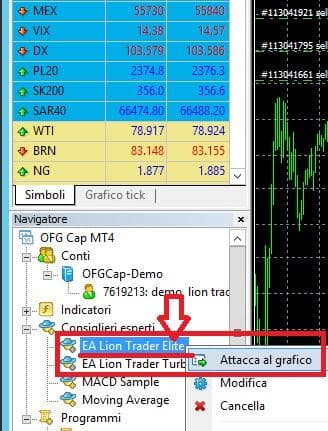
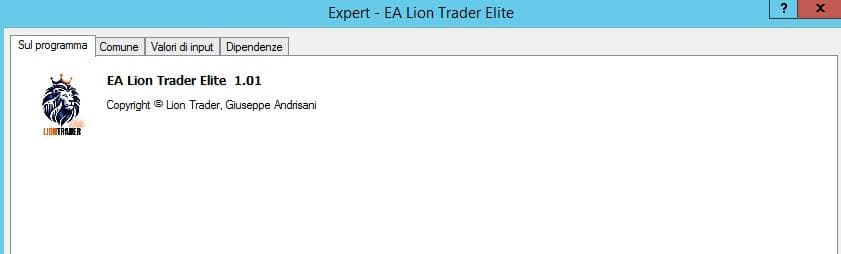
At this point, with the chart window open, all we have to do is install the software. Now we can take the software and place it inside the currency pair EURUSD. To do this, we need to click with the mouse and then select the version of Lion Trader Elite available under the Expert Advisors section and drag it into the chart. Alternatively, we can simply select the version and right-click with the mouse and click. Attach to the chart.
A window will open in the center of the chart. "Experienced advisors" and from here we can set the parameters as in the guide.
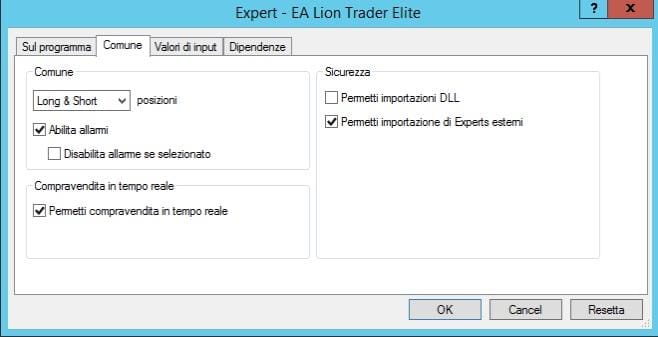
Before anything else, let's check if the items in the Municipality section are enabled as shown in the image. The items that should be checked are: Enable alerts, Allow real-time trading. e Allow importing external Experts.
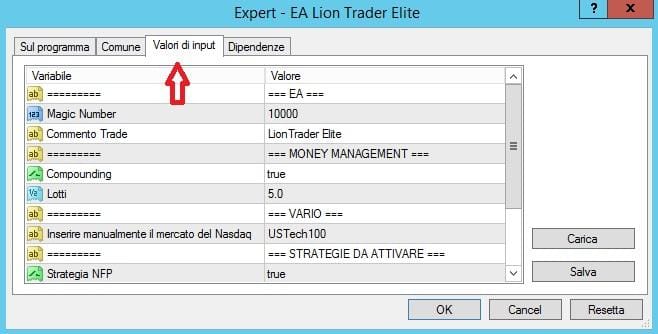
On the tab Input values We will set the settings as per the guide (explained in the last section of this guide).
Once the settings are entered, we just need to click on ok.
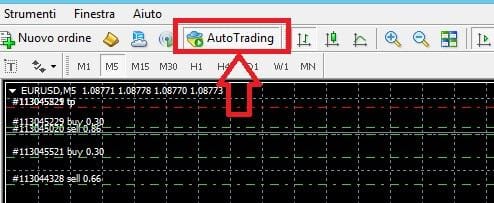
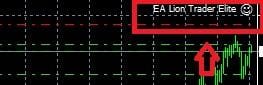
IMPORTANT: do not forget once you have set the settings and Time Frame of each chart to click on AUTO TRADING Only in this way the software will be able to work independently. Also, once Auto Trading is activated, verify that the smiley face at the top right of the chart is smiling.

If you don't remember to activate AUTO TRADING, don't worry because a message will remind you to do it.

To modify the set parameters, you have two options.
1 - Right-click inside the chart where you want to modify the parameters, then on Experienced advisors and then up Properties.
or
2 - click directly on the little face in the top right corner.
LION TRADER SETTING
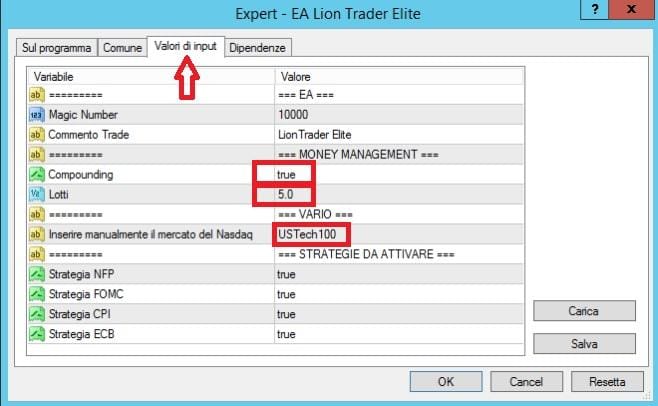
Lion Trader Élite is a fully automatic software. The only thing you will have to do is set the parameters or eventually modify them if you want.
As already shown previously, it is inside the window. Experienced advisors in the tab Input values that è necessary to insert the settings.
WHAT VALUES TO SET
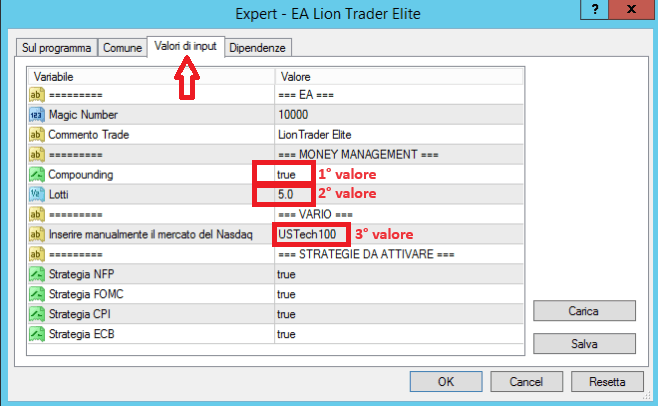
Lion Trader Élite has a very intuitive and fast graphic interface.
There are three values that you will simply need to modify.
COMPOUNDING: It must be set to true
LOTTI: you just need to calculate them with our calculator available below
INSERT NASDAQ MARKET MANUALLY: You need to enter the reference code for this market. If you have Esperio as a broker and you are using Meta Trade 4 as indicated in the guide provided by Esperio, the code is è USTech100
Inserisci la somma in centesimi presente nel tuo conto in Meta Trade 4
IMPORTANT: if you already have another EA active on the same account, such as Lion Trader Turbo, we recommend entering the value of lots that appears under the heading Strategy Cautious.
If you want to push the software further, also considering the Turbo or Easy version on the same account, the lots to be entered must have an average value between the lots indicated by the Cautious Strategy and those indicated by the Normal Strategy.
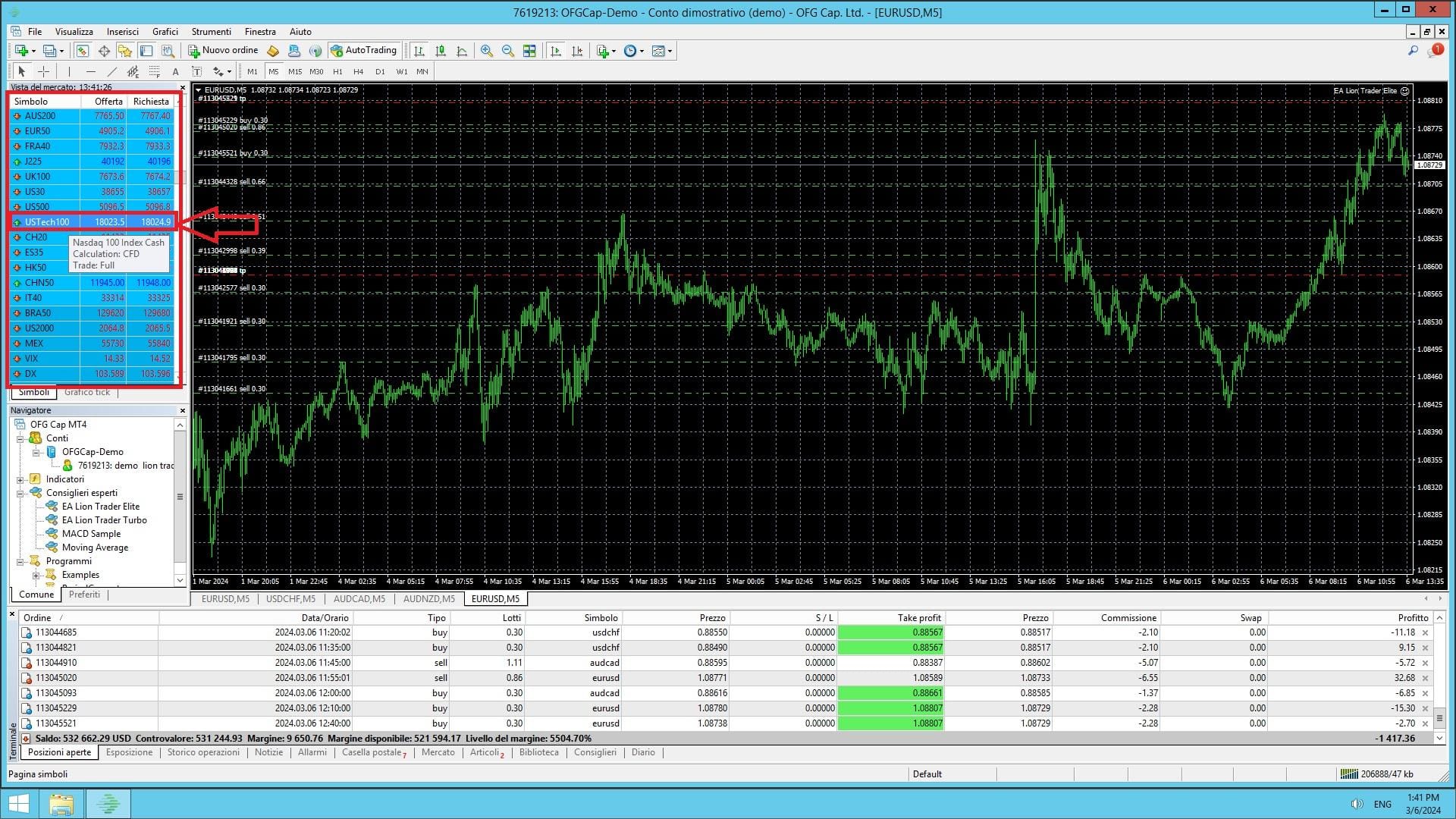
IMPORTANT: BEFORE INSERTING THE CHART AND SETTING THE VALUES IN EXPERT ADVISORS, MAKE SURE THAT ALL MARKETS ARE REPORTED IN THE SYMBOLS SECTION.
If USTech100 is not present, right-click on any value and then click on SHOW ALL.
Access to the Metatrader 4 App
If you wish to access your existing trading account through the Metatrader 4 platform, whether you have an Android or iOS device, you can follow these clear instructions.
For Android devices:
-
Launch the Metatrader 4 app on your Android smartphone.
-
On the home screen, tap on the menu icon, usually located in the top left corner, often depicted with three horizontal lines.
-
Una volta nel menu, seleziona l'opzione "Login" o "Accedi."
-
A login window will appear. Enter your trading account number and your password.
-
If necessary, you will need to select the broker's server from the drop-down menu. If you are unsure which server to choose, contact your broker to obtain this information.
-
Click onl pulsante "Login" per effettuare l'accesso al tuo conto di trading.
-
Once successfully logged in, you will have the opportunity to access your account and start trading operations.
For iOS devices (iPhone):
-
Open the Metatrader 4 app on your iPhone.
-
Nella schermata iniziale, seleziona l'opzione "Login con un Account esistente."
-
A login window will appear. Enter your trading account number and your password.
-
If necessary, you will need to select the broker's server from the drop-down menu. If you are unsure which server to choose, we suggest contacting your broker to obtain this information.
-
Click onl pulsante "Login" per accedere al tuo conto di trading.
-
Once successfully logged in, you will have the opportunity to access your account and start trading operations.
Remember to always enter the account number and password correctly; otherwise, you will not be able to log in. If you forget the password or encounter difficulties during the login process, please contact your broker's support.
Once logged in, you will be able to fully exploit all the features of your trading account and manage your operations directly from the Metatrader 4 app installed on your smartphone.


WHAT IS DRAWDOWN?
Il "drawdown" (o "ritracciamento" in italiano) è una metrica utilizzata nel contesto degli Expert Advisor (EA) nel trading algoritmico. Si tratta di una misura della perdita massima subita da un conto di trading o da un sistema di trading durante un determinato periodo di tempo. Il drawdown è espressa in percentuale e rappresenta la differenza tra il massimo valore del capitale del conto o del sistema e il valore minimo raggiunto dopo una serie di operazioni.
For example, let's say an EA starts with a capital of $10,000 and, after a series of trades, the maximum capital reached is $12,000, but then the capital drops to $9,000 before rising again. In this case, the drawdown is the difference between the maximum of $12,000 and the minimum of $9,000, which is $3,000. To express the drawdown as a percentage, you divide this value by the maximum reached, that is $3,000 / $12,000 = 25%. So, the drawdown in this case is 25%.
The drawdown is an important metric in algorithmic trading because it provides crucial information about the robustness and resilience of an EA. A high drawdown can indicate that the system has experienced significant losses in the past, which could make the trader reluctant to use it. On the other hand, a low drawdown is generally preferable as it indicates greater system stability.
However, it is important to note that drawdown does not provide a complete overview of an EA's performance. It is necessary to evaluate drawdown along with other metrics such as the risk/reward ratio, the success rate of trades, and other statistics to obtain a full understanding of the trading system's performance. Additionally, drawdown can vary significantly depending on the trading strategy and time period considered, so it is important to analyze it in context.